Using the Import wizard
A guided process that will help you add rates, surcharges, and more, step by step.
Written By Mattias Hägerstrand
Last updated 6 months ago
The import Wizard is used when importing rate sheets you get from your carrier.
Prepare your file
The uploaded rate sheet need to be in Excel-format. To create the rate sheet file with the necessary information, make sure the rates are complete and check that all necessary information (see below) is specified in the excel file before uploading to the system.
Checklist before adding rates to Proxio Rate Management:
rates are in Excel format
all necessary information is specified
the file is customized/supplemented with information that facilitates the import
Necessary information:
Relation information: Country, specific postal code, postal code area, city, specific customers, etc.
Constraints: Minimum/maximum limits on shipments, pallet and parcel level, volume conversion factors
Rules: weight rounding, advantage calculation
Add-ons and Surcharges
Upload the agreement file
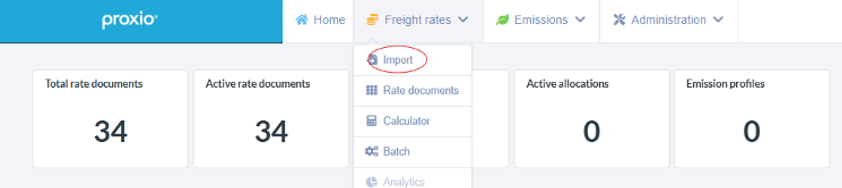
In the navigation, select ‘Freight rates’ and then select ‘Import’
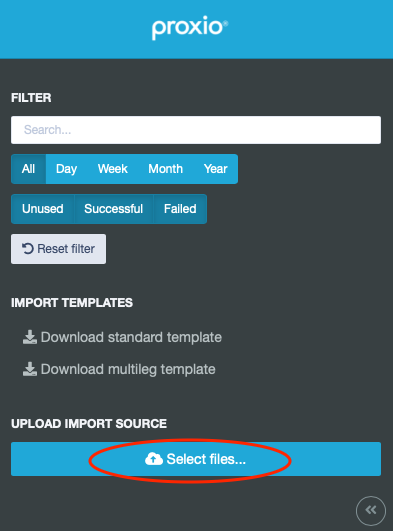
Use the button Select files to upload the new rate document. The uploaded file will appear and be listed with the other uploaded files.
Import Wizard
From the new uploaded document/agreement select which type of tariff to create using the ’Import’ button.
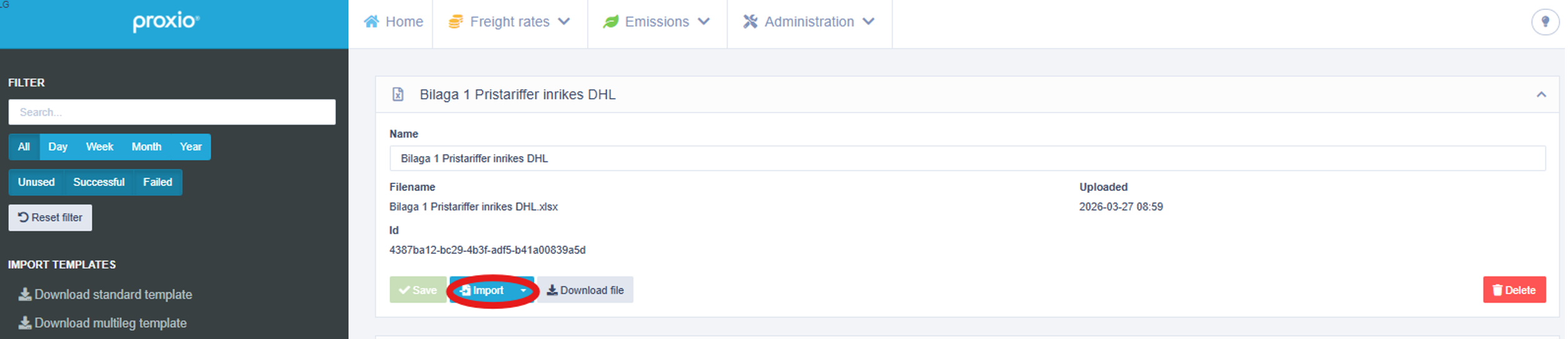
Note: Clicking on the Import button will start the Import Wizard. Clicking on the button drop-down symbol will show the drop-down option to start import using Proxio standard templates.
Clicking on the ‘Import‘ button will start the ‘Import Wizard’ that will guide you through all the steps to configure imported rate sheet(s) to the system.
Step 1 - Select Rate Sheet
Select ‘Custom agreement’ and select the worksheet you want to import, click ‘Next‘
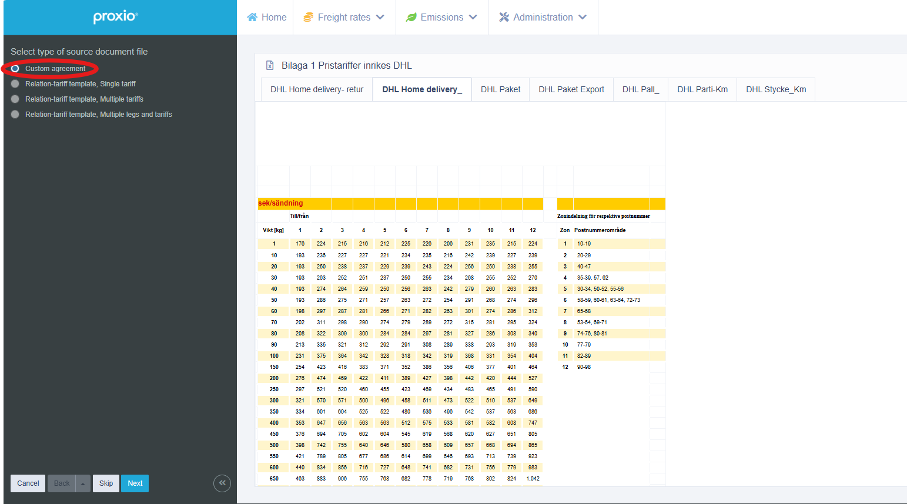
In the next step, you specify the tariff’s validity period and the currency the tariff should be based on and click ‘Next’.
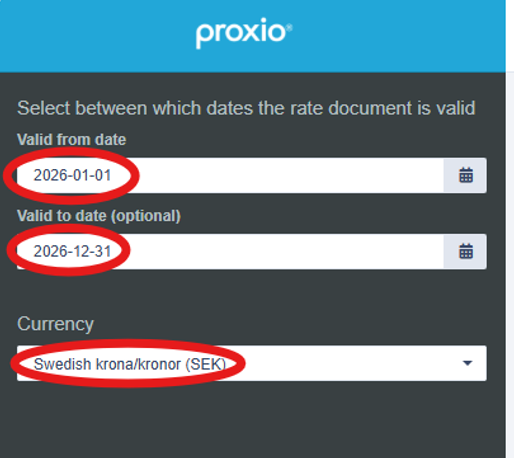
Step 2 - Select Carrier
In the next step you select the carrier and click ‘Next’.
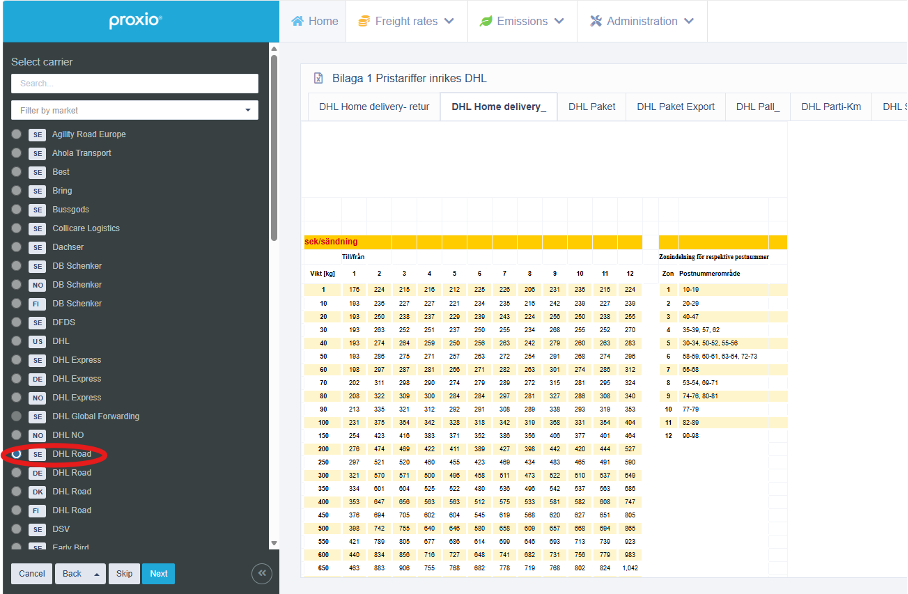
Step 3 - Select Carrier Service
When selecting the carrier, you can choose which carrier service the tariff applies to. By selecting a carrier service, all general terms, surcharges, and optional services are applied to the imported rate sheet.
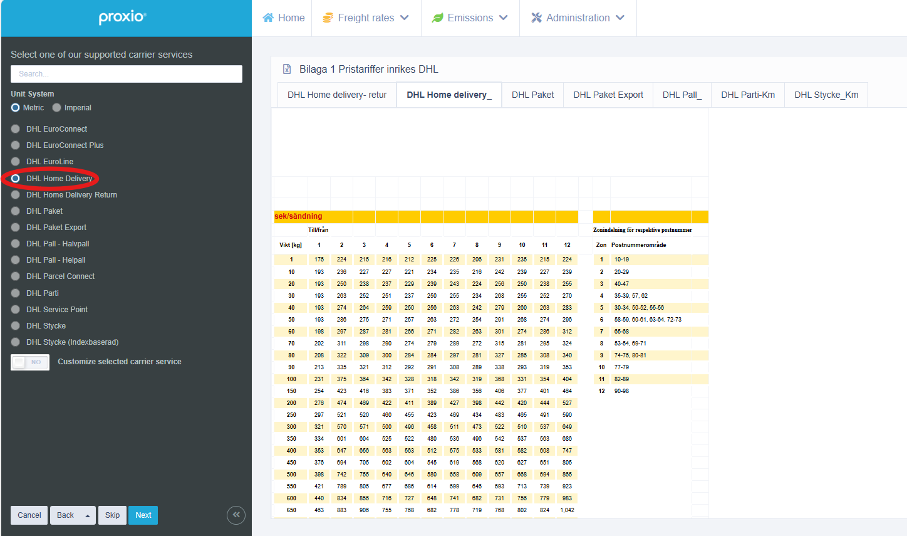
Step 4 - Define Price Unit(s)
In this step, you choose which pricing unit the rate sheet should be based on. A rate sheet can consist of one or two pricing units, for example price per shipment and/or price per 100 kg (common in Europe).
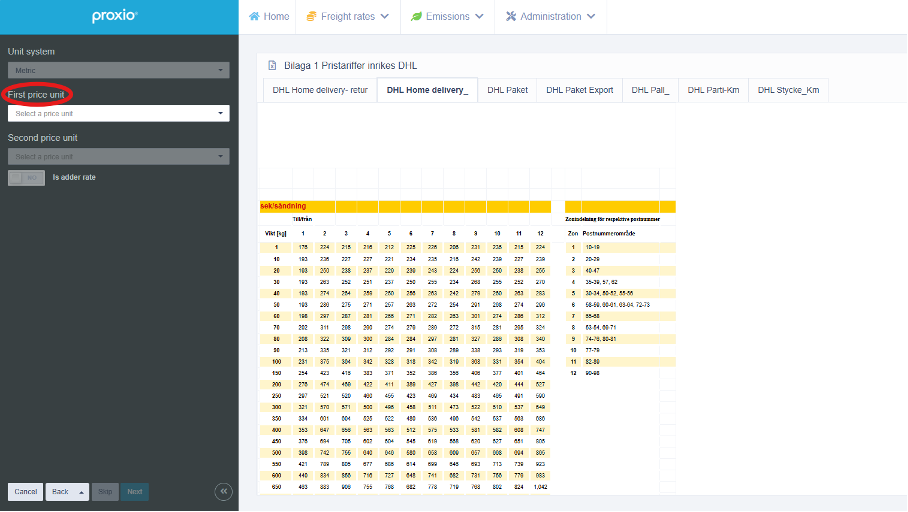
Step 5 - Horizontal Axis
In the next step, you define the horizontal axis of the rate sheet.
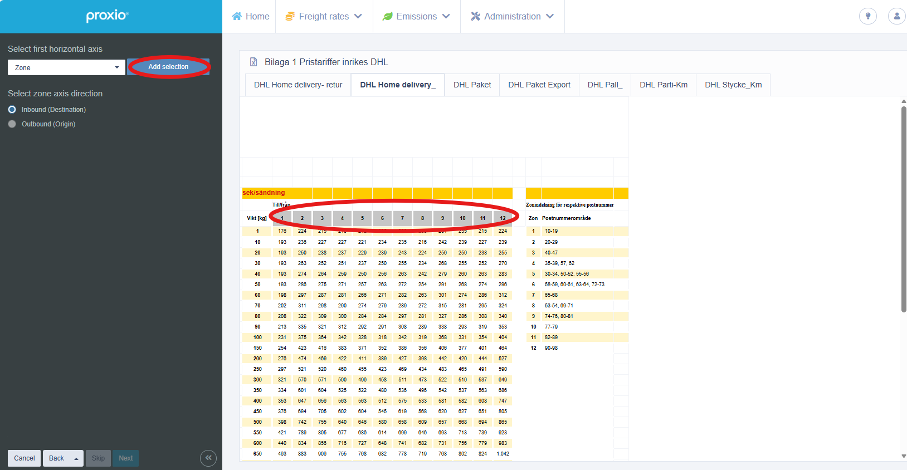
In this example, the horizontal axis is zone, and the direction of the zone axis is inbound. In the left-side panel, select first horizontal axis to be ‘Zone’. In the middle of the screen, highlight the zones as illustrated in the image, and choose ‘Add selection.’
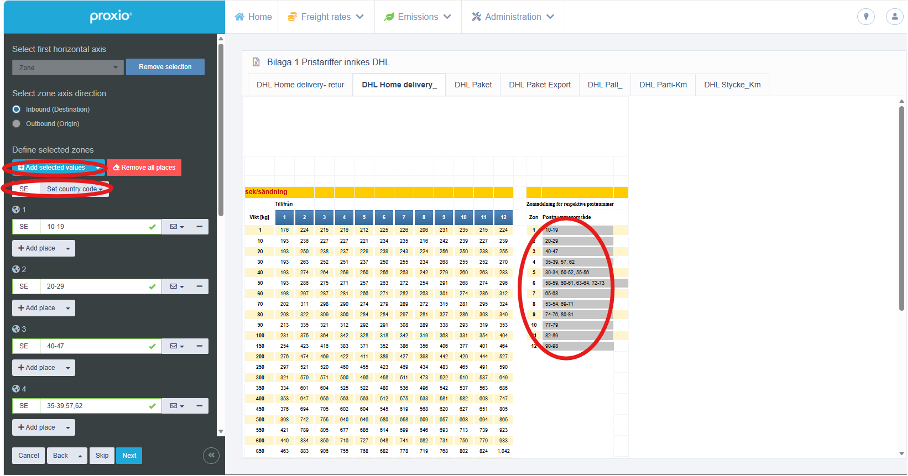
Then you define the zones by selecting the zone definition and choosing ‘Add selected values.’ Under ‘Set country code,’ you enter the country code that the postal code zones apply to. Verify that the numbers are interpreted correctly, and click ‘Next’.
Step 6 - Vertical Axis
In the next step, you define the vertical axis.
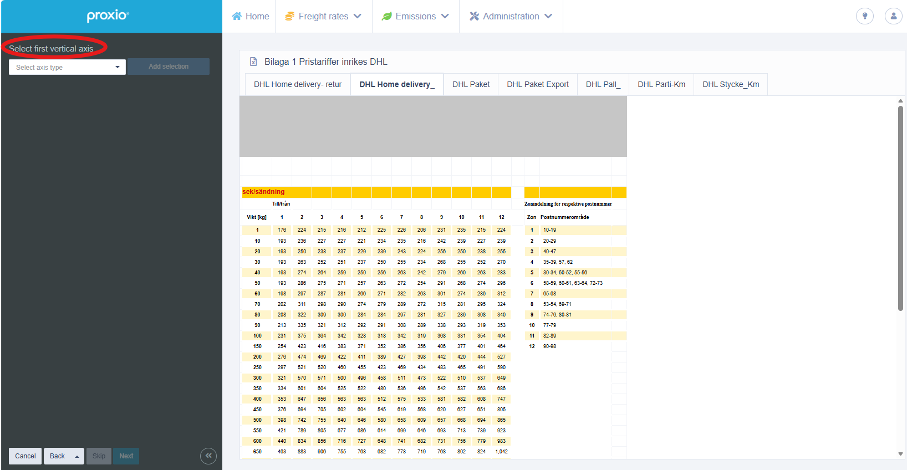
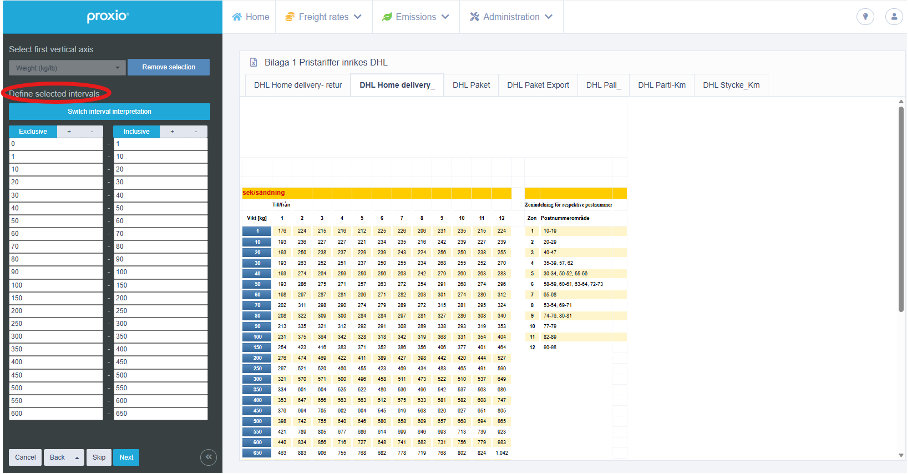
In this example, the vertical axis is weight. You select the weight, and under ‘Select first vertical axis’ you choose ‘Weight (kg/lb)’ and then ‘Add selection.’
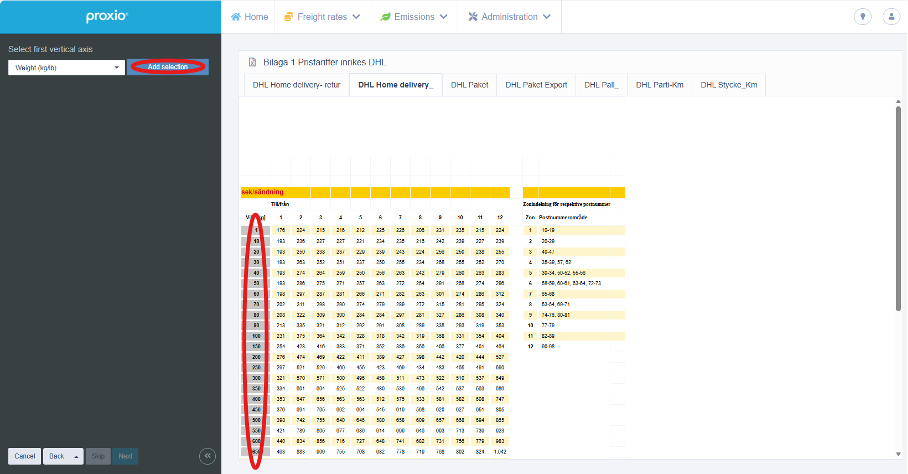
Under ‘Define selected intervals,’ the Import Wizard now shows how it has interpreted the weight breaks. If it is interpreted correctly, you proceed to the next step; otherwise, you can choose ‘Switch interval interpretation’ or adjust the weight breaks manually.
Step 7 - Minimun and Maximum prices
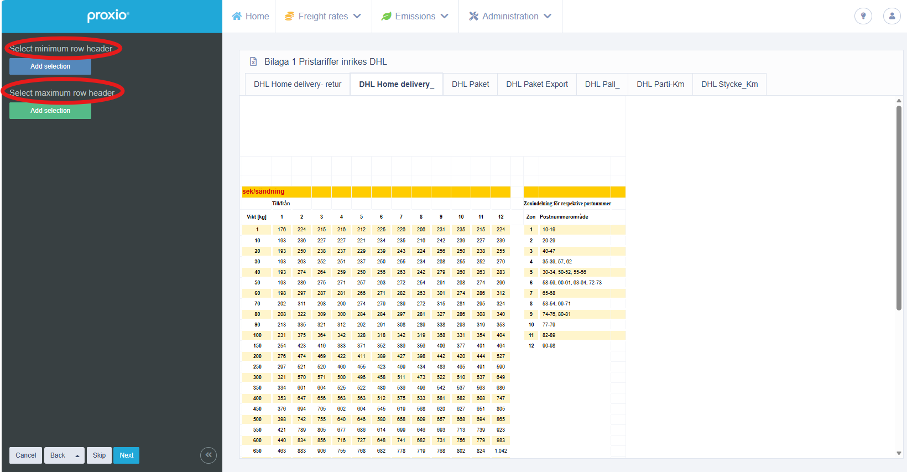
In this step, you specify whether there is a minimum and maximum price in the price matrix.
Step 8 - Rounding
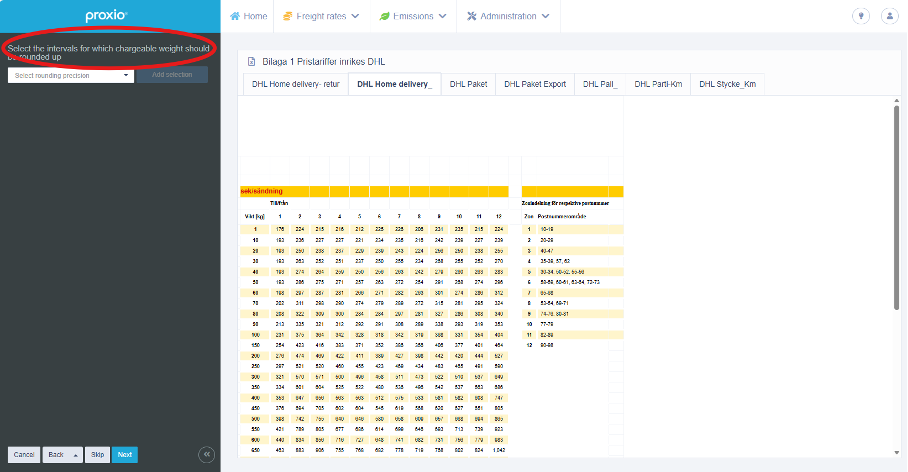
Here you specify if the weight should be rounded. A rate sheet can have one or more different rounding rules. You select the weight intervals that have the same rounding rule, choose how the weight should be rounded, and then click ‘Add selection.’
Step 9 - Beneficial Pricing
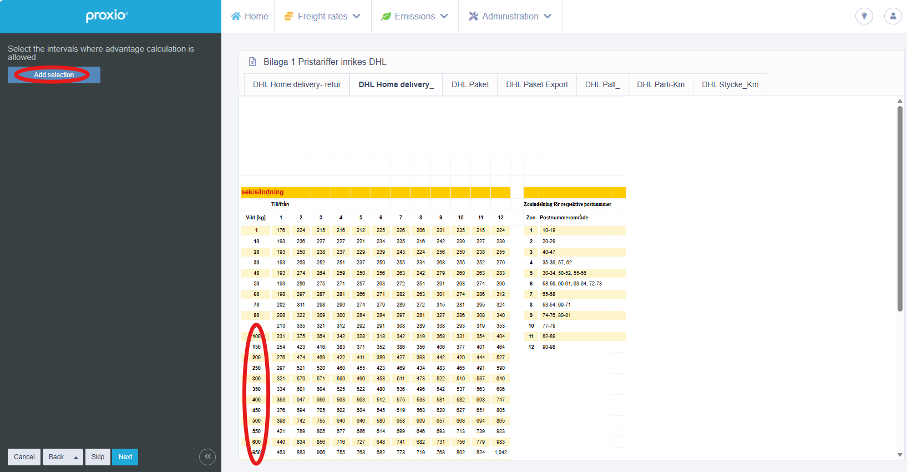
Here you specify whether beneficial pricing applies and, if so, to which weight intervals. You select the weight intervals that the preferential pricing applies to and then choose ‘Add selection.’
Note: This option is hidden when price unit is ‘per shipment’.
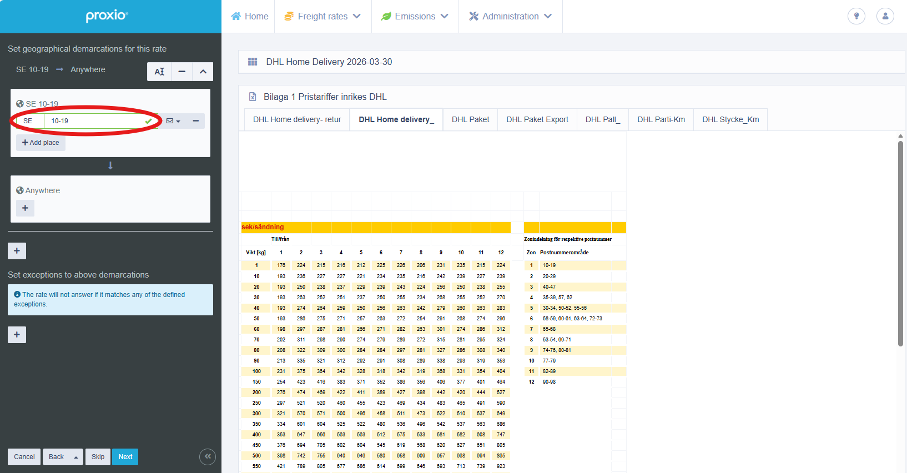
Step 10 - Add Geographical demarcations
In this step, you specify the geographical limitations that apply to a rate sheet. You click the plus sign and define the limitations that should apply.
Step 11 - Name and tags
In the final step, you give the rate sheet a name. You can also add tags, priority, and an emission profile if you want the rate sheet to linked to a specific emission calculation schema.
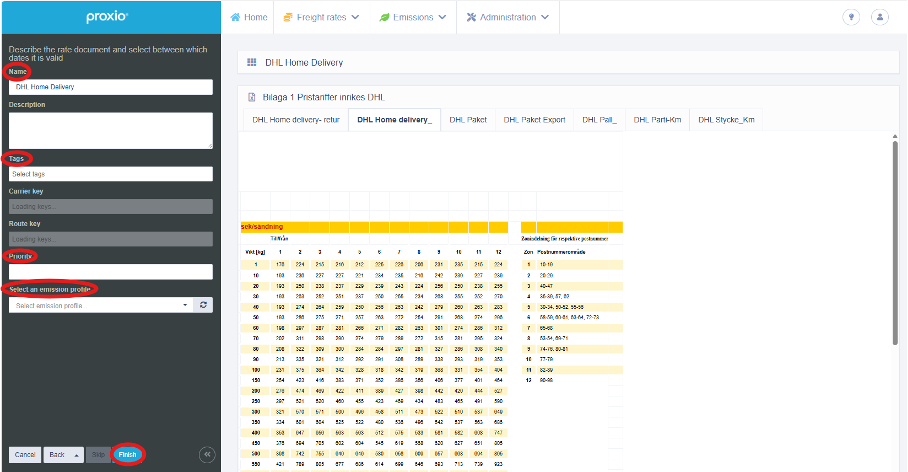
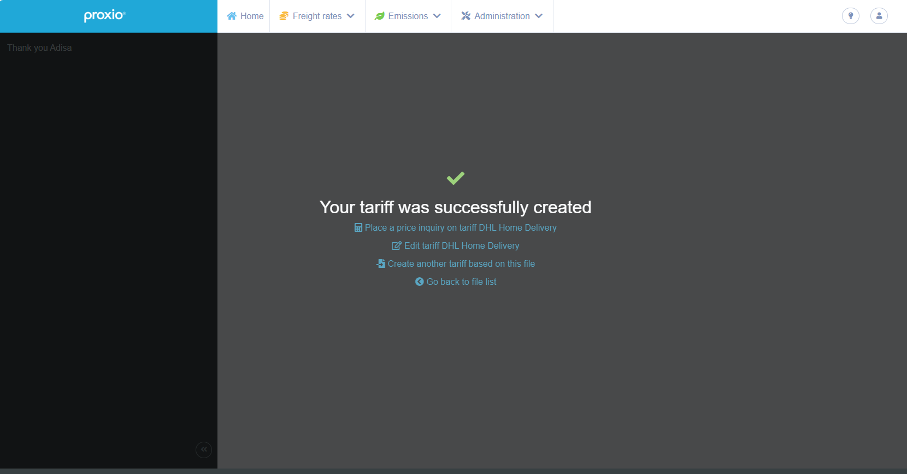
When you’re done, select ‘Finish.’ The rate sheet (tariff) has now been created and saved. You can review the rate sheet under ‘Freight Rates’ > ‘Rate Documents’ in the navigation menu.
Still need help? Share an idea