Using Proxio's import templates

Proxio's Excel based import templates can be used to import your rates into Proxio.

Written By Johan Vagerstam

Last updated About 6 hours ago

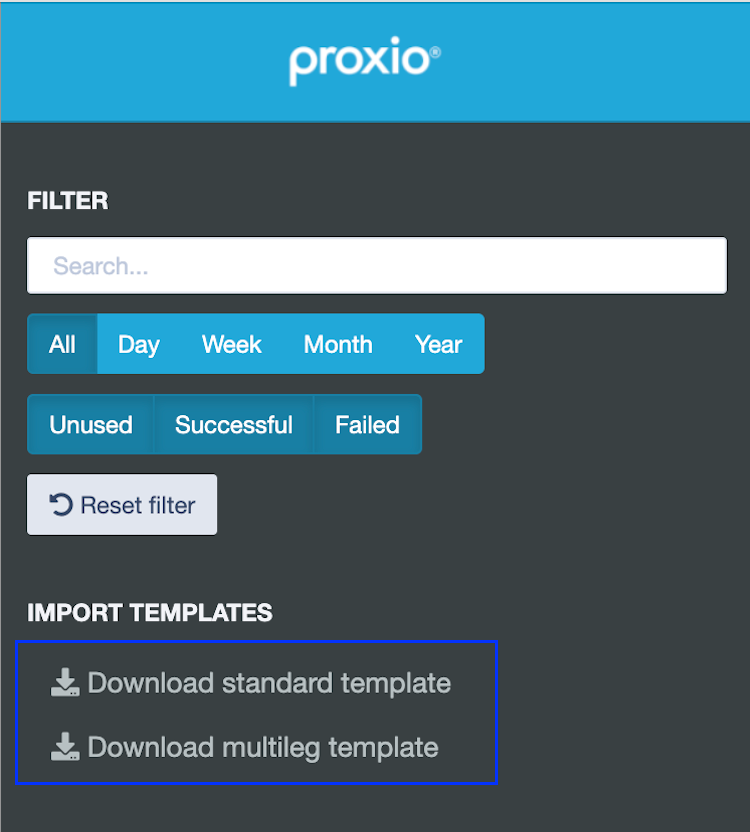
The template can be downloaded from the system by selecting ‘Freight rates’ > ‘Import’.
In the left side panel, select the link ‘Download standard template’ or ‘Download multileg template‘
About using Excel import templates

The templates can be used to import rates in a structured way, following the instructions and documentation that are available inside the template.

There are two worksheets (tabs) in the Excel template files.

Import - This worksheet is where you add information about the tariff / rates. This is the actual data that will be imported.

Picture of Import worksheet in the Excel template


Documentation - This is a worksheet where you find instructions and examples about the data, if a column is optional or mandatory.

Picture of Documentation worksheet in the Excel template.

Note:
The standard import template is a general template used for many (but not all) rate formats. The documented descriptions gives guidance about how to fill in the template, but there can be situations where a column value is mandatory although documentation say it’s optional.

The standard template cannot be used for distance based pricing logic - e.g. when one of the price axis are distance based. For distance based pricing please use the Import Wizard [Add link]

Naming guidelines for Excel templates

The Tariff Name entered in the import template is very important. If you want to add all data in the Excel file into one tariff/rate sheet - you need to specify the exact same Tariff Name on every row. For more information, please review the column description tables below.

Standard import template

Use this template when you have prices of a relation/lane based transport. This is often used for A→ B Transports, from a supplier to a factory or from a warehouse to a customer.

Below is a summary of the columns in the import template and description of each column. (The descriptions are also available in the Documentation tab in the Excel template.)

Column

Description

Tariff Name

The name for the created tariff document. One tariff/Rate document will be created for each unique name during automatic multi-tariff import. All rows with the same Tariff Name well be stored in the same tariff.

Already existing tariff documents with the same name will be updated.

Tags

Tags to tag the tariff document with. Separate multiple tags with comma (,) or semicolon (;).

Carrier Keys

Used for custom match logic. Used together with RouteKeys or by itself.

Route Keys

Used for custom match logic. Used together with RouteKeys or by itself.

Valid From

The date that the tariff is valid from. If no time is specified, it will be valid from midnight local time.

Must have the same value for all rows belonging to the same tariff-revision.

Valid To

The date that the tariff is valid to.

Must have the same value for all rows belonging to the same tariff-document.

Carrier service

The name or code of the carrier service in Proxio Tariffs. The whole name is not required, as long as the specified name only match one service.

Must have the same value for all rows belonging to the same tariff. Different services for different relations is not supported.

Origin Country

Two-letter country code, or the english name, for the origin country.

Multiple country codes can be specified by separating them with comma (,). When multiple country codes are specified, postal code and city/port must be left blank.

Origin Postal Code

The postal/zip code for the origin.

Both complete codes and intervals are supported. Intervals can be entered as prefixes (eg "123" for "12300-12399", if country with five digit codes), as partial intervals (eg "12-14" for "12000-14999") or complete code intervals (eg "12345-23456").

Multiple codes and intervals can be specified by separating them with comma (,).

Origin

City/Port

The origin city name, airport code, harbour code or other place name or code that will be used in the price questions.

Destination Country

Two-letter country code, or the english name, for the origin country.

Multiple country codes can be specified by separating them with comma (,). When multiple country codes are specified, postal code and city/port must be left blank.

Destination Postal Code

The postal/zip code for the destination.

Both complete codes and intervals are supported. Intervals can be entered as prefixes (eg "123" for "12300-12399", if country with five digit codes), as partial intervals (eg "12-14" for "12000-14999") or complete code intervals (eg "12345-23456").

Multiple codes and intervals can be specified by separating them with comma (,).

Destination

City/Port

The destination city name, airport code, harbour code or other place name or code that will be used in the price questions.

Currency

Three letter code (ISO 4217) for the freight price currency. May vary per relation.

Price unit

The price unit to use for all freight prices, if not overriden in freight amount interval.

Must have the same value for all rows belonging to the same tariff. Different price units for different relations is not supported.

Supported price units (several alternate spellings and variants are also supported):

Shipment/shp
Unit/Container/Pallet/Package/Parcel/Piece/pcs
CubicMetre/cbm
500g
1kg/kgs
5kg
10kg
25kg
50kg
100kg
1000kg/1t/tonne
UnitAndKg
TonneKilometre/tkm
WMSea
LoadingMetre/ldm
PalletSpaces/PPL

Min price

The minimum total freight price for the shipment. May vary per relation.

Freight amount axis and prices

One or more columns with freight amount intervals, freight amount unit, and optional price unit in the column headers, and with freight prices in the value rows. Values are optional.

The interval can be defined as an interval with two values (eg: "1 - <100" or ">0 - 100"), in which case it is recommended to use '<' or '>' to specify if it is the start or end value that is exclusive. Otherwise the system will guess. The last interval can be left open (eg: ">1000 -"). Multiple intervals should not overlap (eg: "1-10, 10-20") or have gaps (eg: "1 - <10", ">10-").

Alternatively the intervals can be specified by only its start value (eg: "1-"or ">0") or its end value (eg: "<100" or "-100").

The freight amount unit should be placed after the interval (eg: "1 - <100kg" or "1t -").

Supported units
units/pcs/st
gram/g
kilogram/kg
unitkg
m3/m³/cbm/kbm
ldm/flm
PPL/Pallet Spaces

Alternatively, the type of freight amount can be specified before the interval (eg: "Weight: 1-", for weight in kilogram; or "Volume: 1-<10" for volume in cubic metres). Only the first column header needs to specify the freight amount unit.

Different price units can also be specified per interval by appending "per priceunit" (see Price unit column above for possible values for "priceunit"). If the Price unit column is not used, the price unit must to be specified for each interval.

Max price

The maximum freight price for the shipment, or the FTL price. May vary per relation.

m³ to kg

Conversion factor for converting volume in cubic metres to chargeable weight in kilograms. May vary per relation.

ldm to kg

Conversion factor for converting loading meters to chargeable weight in kilograms. May vary per relation.

ps to kg

Conversion factor for converting pallet spaces to chargeable weight in kilograms. May vary per relation.

Weight (kg)

Minimum chargeable weight for the whole shipment in kilograms. May vary per relation.

Volume (m³)

Minimum chargeable volume for the whole shipment in cubic meters. May vary per relation.

Surcharges []

For more information about surcharges and pricing information on each transport leg, please review the documentation tab in the Excel template.

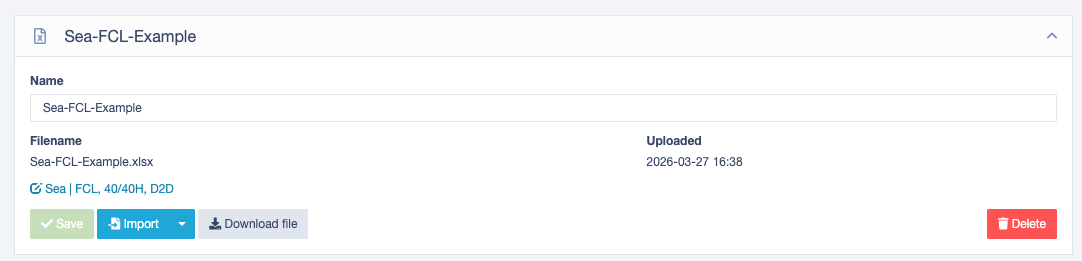
As example, here is a standard template with example data for FCL (Full Container Load). As the name for the rows in the example are the same, they would be added into the same Tariff/Rate sheet after the import is made in Proxio.

Sea-FCL-Example.xlsx

39.1 KB Spreadsheet

Standard Multileg template

Use this template when you have pricing of multiple transport legs. This is most often used in Air and Ocean when there are pre-carriage, main carriage and on-carrige.

An example:

  • Pre-Carriage: Inland transport pricing by road from a factory to a sea port.

  • Main-Carriage: Sea port to sea port pricing for on ocean container transport.

  • Pn-Carriage: Inland transport pricing by road from sea port to a warehouse.

The prices of multi leg transport allows for a combination of multiple pricing sheets into one worksheet, e.g. the Excel based multi leg template.

Note: For the multileg template, there are extra options to add three (3) types of surcharges. You can build up the columns so they fit the price brackets you would like to import.

As example, here is a multi leg template with example data added to pre-carriage, main-carriage and on-carriage. As the name for the 3 rows in the example are the same, they would be added into the same Tariff/Rate sheet after the import is made in Proxio.

[Add attached file with example rows filled with multileg example-template]


Customized import template

If you have needs that goes beyond the standard templates, there is an option to adjust the import templates to your own formats. Consult your Key Account Manager or contact Proxio support team if you are interested in learning more about customised import templates.

How to Import an Excel template

Follow these steps to import your rates in Proxio.

  1. select ‘Freight Rates’ > ‘Import’. Select the file you want to import.

  2. When the file is uploaded you can view it in the list view.
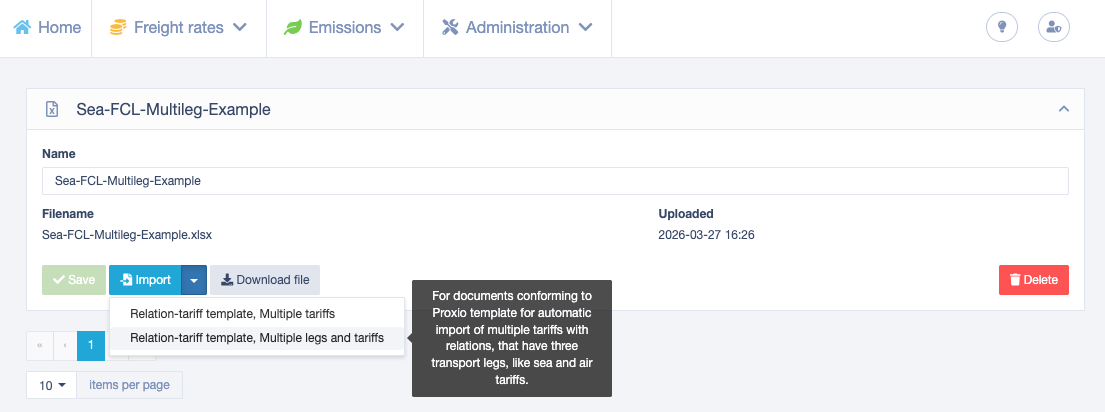
  3. Click on the drop-list icon, and select ‘Relation-tariff template, Multiple tariffs‘ if you import rates using the standard template (single leg) or select ´Relation-tariff template, Multiple tariffs´ if you are using the multileg template.

  4. On the following screen, you have some optional fields to add a suffix or prefix. Just click ‘Queue import‘. The file is now pending import on the server. After a few moments the import should start. The time can vary depending on server load at that time.

  5. When processing is done and successful, the rate-sheet(s) create will be available as links in the dialogue. In this example, one bid sheet was created.