Edit a Rate Document
This article guides you through the settings you can make for managing a Rate Document.
Written By Mattias Hägerstrand
Last updated 12 days ago
All rates are listed under Freight rates menu under the option Rate Documents.

Select the listed Rate Document you want to edit. The Rate Document can be edited in the edit view or using the wizard.

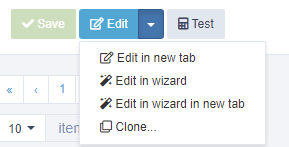
Select the revision you want to change and select the Unlock button to edit.

On the left side under the selected revision you can select what you want to edit; Overview, Price Matrix, Geographical boundaries, Service & Rules, Additional costs or Product settings.
Overview
Here you can select the validity of the rate document. All rate documents need to have a valid from date but the valid to date can be left empty. If ‘Valid to’ is empty, it means the validity is indefinite.

You can also link a Rate Document to an Emission Profile. For example, if the terms of the Rate Document is about a certain type of fuel (e.g. Bio-diesel instead of Fossil Diesel), you can configure this by adding a name to an Emission Profile used for the applicable Energy carrier Bio-diesel’. Note: You would need to have a valid license for Proxio Emissions.
Price matrix

Here is the place where you can edit the prices in the matrix or the zones and more. You can edit the prices in the following ways:
By fixed amount
This option will update all rate values with the entered amount. The amount can also be negative if you want to make a price reduction.By percentage
This option will adjust all prices in the rate table with the selected percentage.
Copy & Paste from clipboard
This is a very useful feature if you want to adjust values more dynamically. Follow these steps:Select Clipboard > Copy values (This will copy the rate table is copied to your clipboard).
Open an Excel spreadsheet, and paste the values. (CTRL + V for Windows and Command + V for Mac)
Do the changes you want to do. When you are done, select the complete rate table and copy them to your computer clipboard (CTRL + C for Windows and Command + C for Mac).
Go back to Proxio, click the button Clipboard > Paste values. This will past the updated values from Microsoft Excel and into your rate table in Proxio.
Check that the values are correctly updated, and click Save.

Import values from Proxio Excel template. The excel import template is a generic way to get most types of rate sheets imported into Proxio from an Excel file. [Link to user guide for Rate Management > Import]
Troubleshooting
If the revision is locked and you are updating the prices you will only get the option to create a new revision with the new values, whereas if you are adjusting the prices to a new, active revision you can update the prices in the selected revision.
If the selected revision is not active, or if it is a new active revision that has not been saved yet you won’t get the option to create a new revision.

If the menu option Paste from clipboard is disabled it’s because of you are using http:// instead of https:// or using and old, not supported browser.
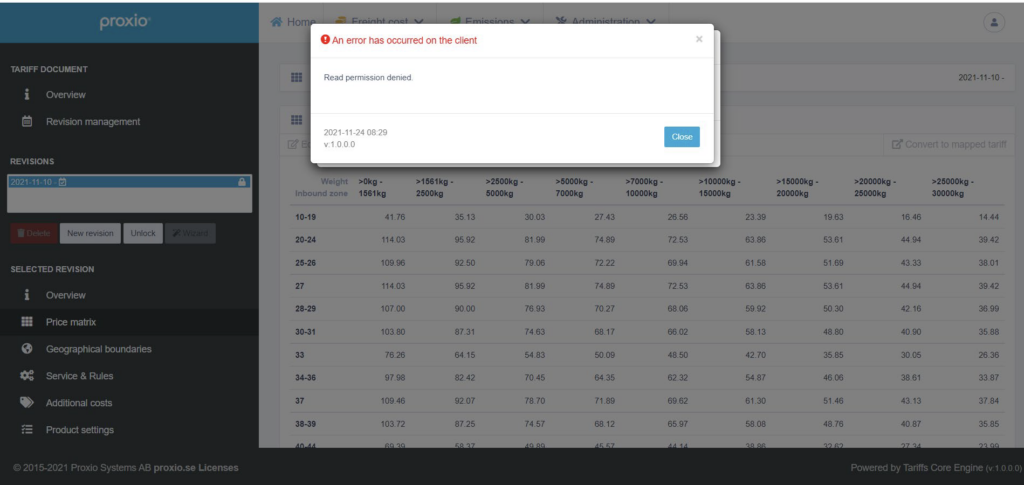
When selecting the option Paste from clipboard a textbox might appears in the window where you must allow the site to “See text and images copied to the clipboard”, to use this option or the following messages will appear, see image below.
Geographical boundaries
Edit demarcations, origin zones and destination zones, for which the tariff should answer and exceptions to the demarcations can be added here.
Example A: Export out of Germany.
Let’s assume we have the following situation.
Rate sheet are for road transport out several sites in Germany.
The prices are based on distance, so we have no location based information in the rate sheet. (x-axis id distance in km and y-axis is weight)
The delivery locations can be Germany, Poland, Belgium, Luxembourg, Netherlands, France or Denmark.
This is a situation where geographical boundaries are handy to use. The rate sheet will answer only if Origin country is Germany and since we want this to be a flexible setup, we leave destination country unspecified. This means that this rate sheet will provide a price for any transport out of Germany.

Example B: Export out of Hamburg, Germany.
If we would have a rate sheet that is explicitly from Hamburg in Germany, we could specify the demarcations in the following way:
Origin postal code (5 digits) starts with 20 or 21 or
Origin City name is Hamburg, then
The rate sheet will match the specific price query request.

Service and rules
This is where you enter details about the carrier and carrier service, dimension constraints and weight constraints. If you are using one of Proxio’s standard carrier services - these values are provided as default values.

In order to make any changes, remember to click ‘Unlock’ before you can make any changes. Press save when you are done.
Additional costs
An overview of which add-ons and surcharges that is applicable and active on the Rate Document, options can be changed or removed.
If you are using a Proxio standard carrier service, surcharges and add-ons are inherited from the global directory maintained by Proxio. Making changes to such a service will stop the inheritance and you will not be granted automatic updates.

If you want to restore the default values of a Proxio standard carrier service, you can do so by clicking on the Restore button in either of the sections for Adonis or Surcharges.

Before the restore is executed - you will need to confirm that you want to replace your custom settings with the default values.
Whenever working in a Rate Document, itt is important to save after every change, before making a new change and moving to a different view.
Product settings
Advanced settings for a few Proxio Customers that uses Proxio Rate Management as a product catalog on their websites or other use cases. Contact Proxio team for custom support if you need help with the product settings.